How-to
Setting up a home office for full-time work
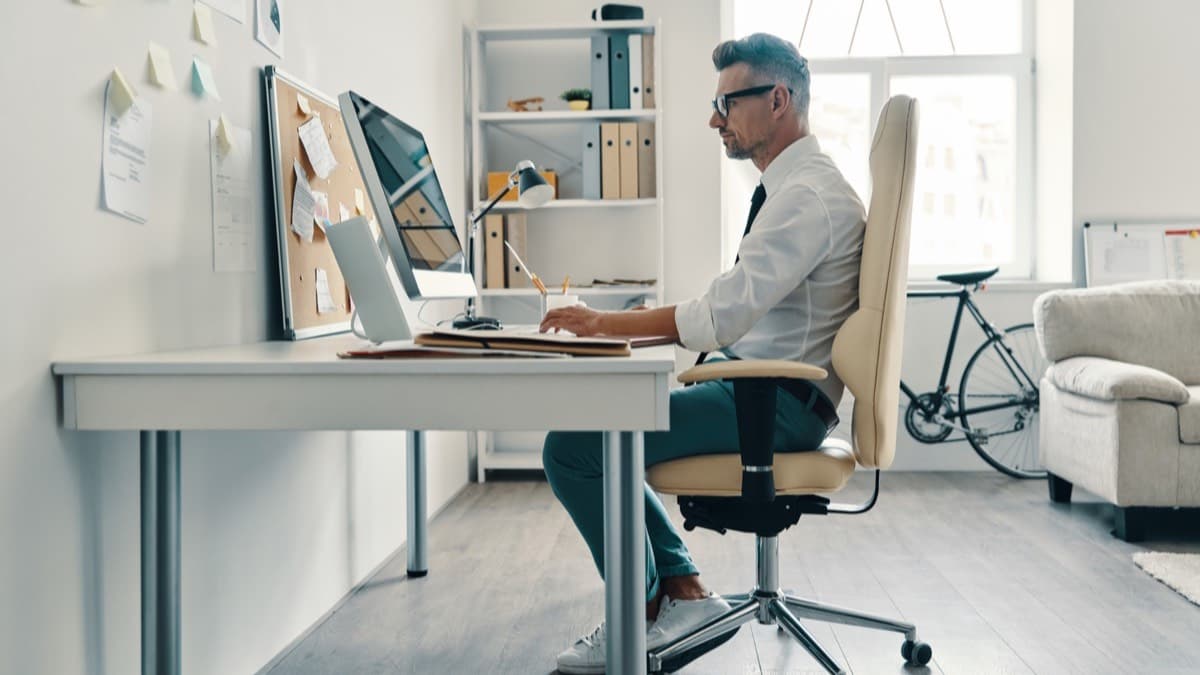
Set the chair, the desk and the monitor so your body stays in a neutral position, and build changes of posture into the working day.
Satisfy+ Editorial · Updated August 8, 2026 · 3 min read · 45 min to do
At a glance
- Monitor distance
- 20 to 40 inches from your eyes
- Monitor height
- Top of the screen at or slightly below eye level
- Elbows
- Close to the body, bent 90 to 120 degrees
- Feet
- Flat on the floor, or on a footrest
A workstation set up badly can bring fatigue, eye strain, and neck and back pain over a working day. The aim is a neutral position, where the joints sit in their natural line, which cuts the strain on muscles, tendons and bones and the risk of a musculoskeletal disorder. Working in one posture for long periods causes strain too, even a good posture.
What you need
- The chair, the desk and the monitor you work at
- A rolled towel or a removable back cushion, if the chair has no lower back support
- A footrest, if your feet don't reach the floor
- A book or a stand, to raise the monitor
Steps
- 1
Set the chair height
Your whole foot should rest on the floor, with the back of the knee slightly higher than the seat. Thighs and hips sit roughly level, and knees about level with the hips, feet a little forward.
5 min
- 2
Support the lower back
The backrest should follow the curve of your spine and fit into the small of the back. If the chair has no lower back support, a rolled towel or a removable cushion does the job for now.
5 min
- 3
Check the seat depth
The seat should hold most of the thigh, with a gap between the back of the knee and the front edge of the seat. Move the seat or the backrest if the chair allows it.
5 min
- 4
Bring your feet up if the seat can't come down
When lowering the chair would leave the desk too high, put a footrest under your feet instead.
5 min
- 5
Place the monitor
Put it directly in front of you, 20 to 40 inches from your eyes, so your head, neck and body face forward. The top of the screen goes at or slightly below eye level. Raise it on a stand or a book if it sits too low, and make the text bigger rather than leaning in.
10 min
- 6
Turn the monitor away from the glare
Set it perpendicular to the window. Tilt the screen so it's square to your line of sight, which usually takes no more than 10 to 20 degrees. Tilted farther back, it picks up glare from the overhead lights.
5 min
- 7
Check your arms and shoulders
Shoulders relax, upper arms hang at your sides, and elbows stay close to the body, bent between 90 and 120 degrees. Hands, wrists and forearms stay straight and roughly parallel to the floor.
5 min
- 8
Sit for a minute and check the position
Feet flat, back against the support, the top of the screen at or slightly below eye level, and elbows bent between 90 and 120 degrees.
2 min
Set up the home office for a full working day
- Set the chair height so your feet rest flat
- Put the monitor 20 to 40 inches away, top at eye level
- Turn the monitor so it's perpendicular to the window
Through the day
Make small adjustments to the chair, stretch your fingers, hands, arms and back, and stand up and walk around for a few minutes now and then. Take some tasks, such as calls and reading, standing up.
Every so often, look up from the screen and focus on something farther away, such as a clock on a wall 20 feet off. Stop, look away and blink at regular intervals to keep your eyes moist. Breaks for work away from the screen, such as filing and phone calls, rest the eyes too.
FAQ
How far away should my monitor be?
Between 20 and 40 inches from your eyes, directly in front of you.
How high should a monitor sit?
With the top of the screen at or slightly below eye level.
What if my chair has no lower back support?
Use a rolled towel or a removable back cushion at the small of your back.
Sources
Checked October 19, 2026
- Occupational Safety and Health Administration. Computer workstations eTool: good working positions (2026)
- Occupational Safety and Health Administration. Computer workstations eTool: monitors (2026)
- Occupational Safety and Health Administration. Computer workstations eTool: chairs (2026)
- Beginner
- Free
- DIY