Checklist
Locking down your accounts and your home Wi-Fi
Protect your accounts and home network with long, unique passwords, a second login step, a router with its defaults changed, up-to-date devices and a backup.
Satisfy+ Editorial · Updated September 13, 2026 · 2 min read
At a glance
- Passwords
- Long, no common words, never reused
- Logins
- Multi-factor where it's offered
- Router
- Encrypted, default passwords changed
- Devices
- Automatic updates, and a backup
Your online accounts, computer and phone hold a lot of your personal, financial and health information, and scammers want it.
Your accounts
- A long passwordYour password is the key to all the personal information in the account. Make it long, and avoid common words.
- One password per account
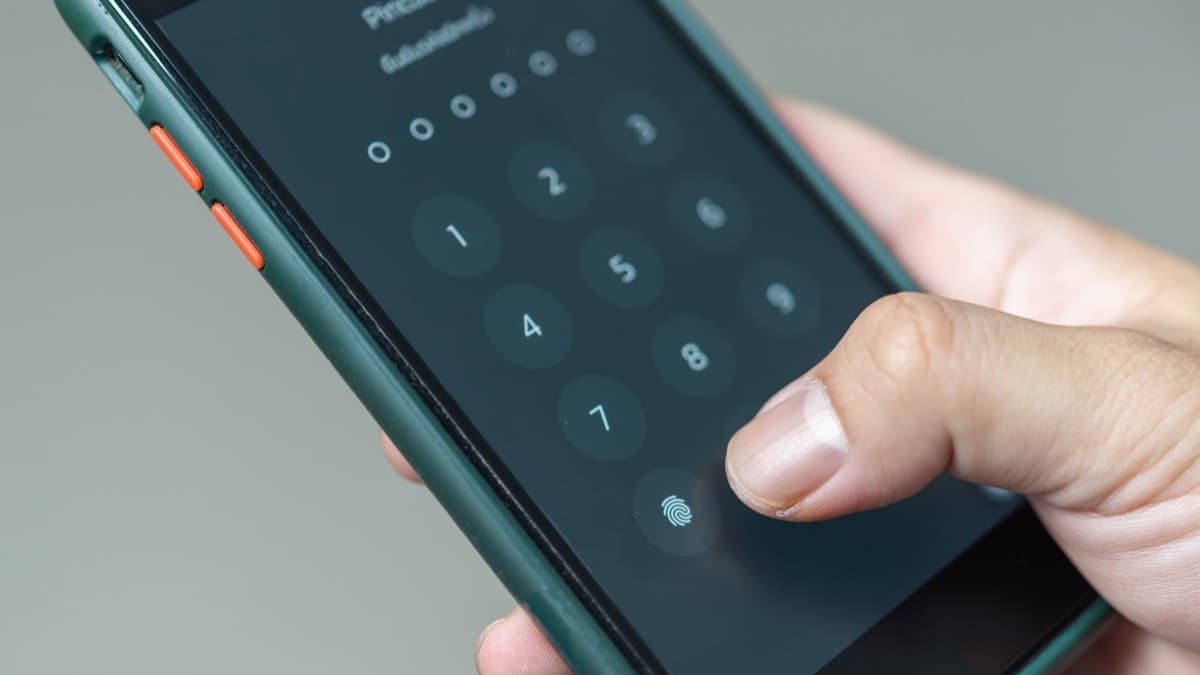
- A second login stepIf an account offers multi-factor authentication, turn it on for an extra layer of security.
- No written list in the papers boxDon't keep a written list of passwords or PINs with your copies of important papers.
Your home Wi-Fi
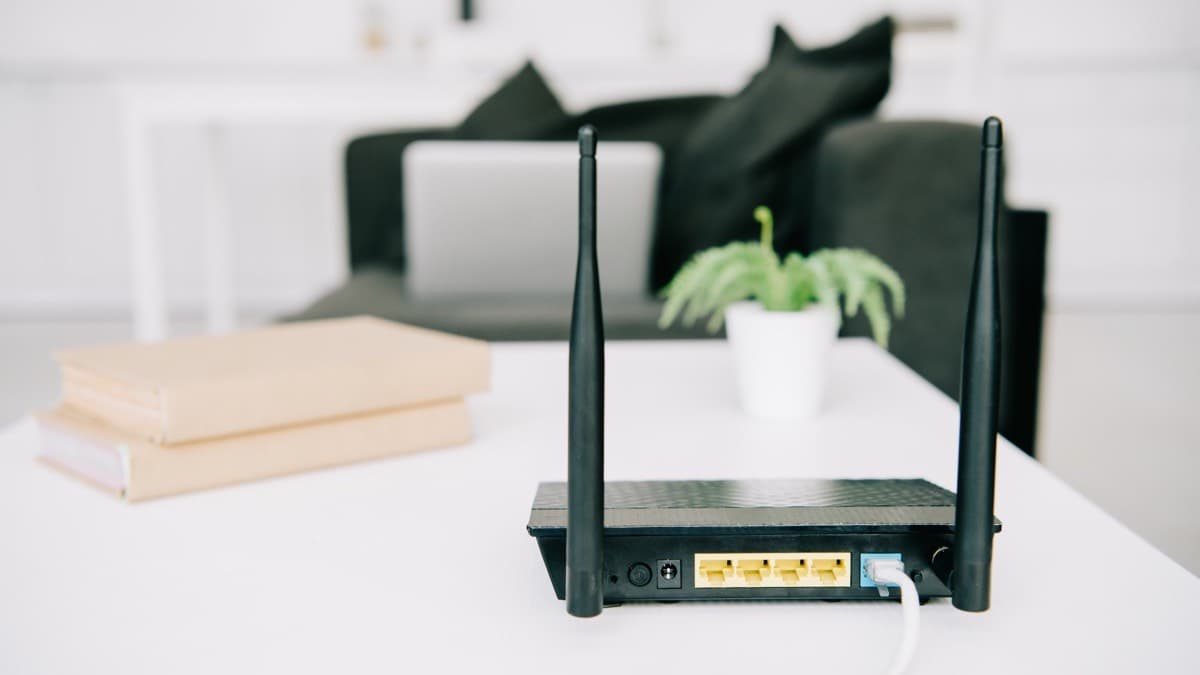
- Encryption onSet the router to WPA3 Personal or WPA2 Personal. WPA3 is the newer and best encryption available. If neither option appears, update the router's software first and look again.
- New admin login and network nameChange the router's default administrative username, password and network name to something unique. Don't use your name, your address or the router's brand. The maker's website, or a search for the brand name, shows how to change them.
- A separate Wi-Fi passwordGive the network its own unique password, different from the router's admin password. A unique, secure network password keeps strangers from getting onto your network.
- The firewall onMost routers have a built-in firewall that helps keep out viruses, malware and hackers. Check the settings to make sure it's turned on.
- The extra features offTurn off remote management, Wi-Fi Protected Setup and Universal Plug and Play. Those conveniences can make the network less secure.
- Logged out as administratorLog out of the admin account when you're done, because someone who gets into it could take control of the network.
- A guest networkMany routers let you set up a guest network with its own name and password. Fewer people then know your main password, and a guest's device stays off your main network.
- Router software up to dateCheck the maker's website for newer router software, register the router for update notices, and ask your internet provider whether it sends updates automatically.
Your computer and phone
- Every connected deviceAn unsecured device on the network can expose the rest of it, so secure every internet-connected device as well as the computer.
- Security software, system and browser up to date
- Automatic updatesTurn them on to keep up with the latest protections, on the phone as well as the computer.
- Messages that ask for your detailsScammers pretend to be organizations you know and make up a reason they need information from you. See Phishing emails and texts.
A backup
- A copy of what mattersBack up the important information on your computer and phone, so you can recover it if something happens to the device.
Lock down your accounts and Wi-Fi
- Turn on multi-factor login for email and bank accounts
- Change the router's default admin password and network name
- Set the router's Wi-Fi to WPA3 or WPA2 Personal
- Turn on automatic updates on the computer and phone
- Back up the computer and the phone
Sources
Checked October 19, 2026
- Federal Trade Commission. Five things to do to protect yourself online (2022)
- Federal Trade Commission. How to secure your home Wi-Fi network (2022)
- Federal Emergency Management Agency (Ready.gov). Emergency financial first aid kit (2019)